VS Code
Free open-source code editor from MicrosoftFree editor, huge extension library
Highlights
What you can do with it
- Web development with AI assistance and debugging plugins
- Team collaboration across different operating systems
- Learning programming with a friendly, well-documented editor
How to use it
- 1 Download the installer for your operating system.
- 2 Set a theme, either automatically from your system or manually.
- 3 Install extensions for formatting, linting and version control.
- 4 Open a project folder and write code, using AI agents where helpful.
- 5 Run and debug the code to check it behaves as expected.
Who it is for
Pros
- Completely free with no seat licenses
- Open source with a large contributor base
- Extension ecosystem covers almost any workflow
- Runs on the three major desktop systems
Limitations
- Multi-agent and AI features depend on external services and models that can change
- Heavy extension use slows startup and can create conflicts
- Configuration takes time, and the defaults are not tuned for every stack
- It is an editor, not a full IDE, so some workflows still need other tools
What Visual Studio Code is
Visual Studio Code is a free and open-source code editor developed by Microsoft. It runs on Linux, macOS and Windows, and it is used by everyone from students writing their first loop to teams shipping production software. The current version supports multi-agent workflows: AI agents can plan a structure, write code and debug it, and the editor manages those agents across the different systems you work on. Outside the AI features, it is a complete editing environment. You get fast global search, theme settings that follow your system or your own choice, and an extension marketplace that covers formatting, syntax checking, version control and language support for almost any stack. It is free to use to download and use, and its open-source license means developers around the world contribute to it.
What you can do with it
- Write and debug code with AI agents assisting on structure and fixes.
- Install extensions for formatting, linting, language support and version control.
- Run the same editor on Linux, macOS and Windows with multi-agent support.
- Customize themes and shortcuts to fit how you work.
Who it is for
- Professional developers who work across several languages and systems.
- Students learning programming without a budget for tools.
- Small teams that want one shared, extensible environment.
What to watch out for
The AI and multi-agent features lean on external models and services, and those can change in availability, quality and terms without the editor itself changing. Extensions are the other trap: install too many and startup slows, and badly maintained plugins can conflict or break after an update. Setup also takes time. The defaults are general, and a specific stack usually needs its own configuration before the editor feels fast. Finally, it is an editor rather than a full integrated development environment, so heavier workflows such as complex GUI design or deep profiling still call for dedicated tools.
FAQ
Does it cost anything?
No, it is free and open source.
Which systems does it run on?
Linux, macOS and Windows.
What are multi-agent workflows?
Support for running several AI agents that can plan, write and debug code across environments.
Can I extend it?
Yes, through a large marketplace of extensions for formatting, linting, version control and more.
Why it is free
What the official page says: completely free
Free limits, trial length and features are decided by the official site and can change at any time.
Product preview
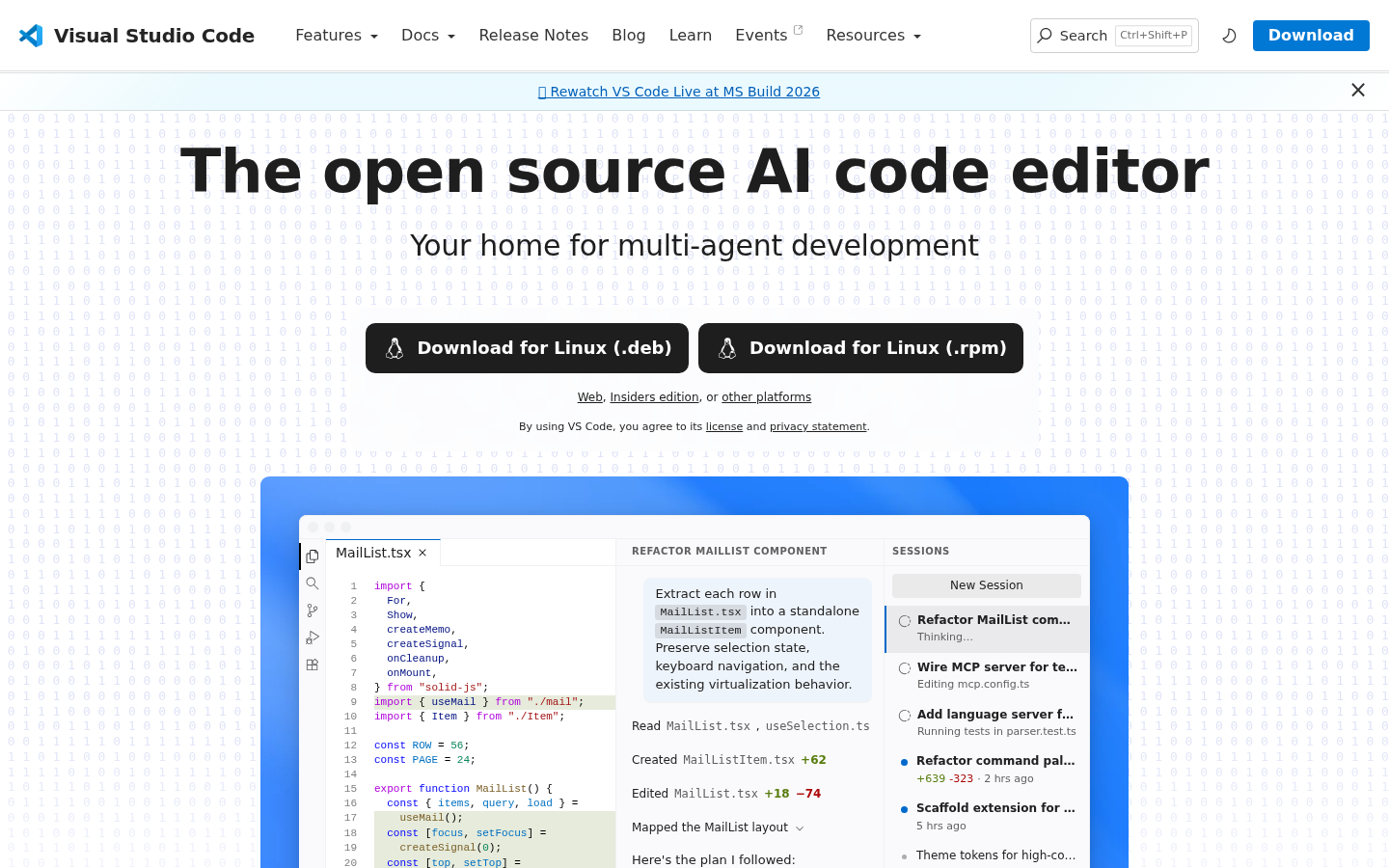
Screenshot archived from the listing page, for preview only.