VoiceOS
Voice control across your desktop appsVoice commands that work across apps
Highlights
What you can do with it
- Business travelers searching flights and arranging schedules by voice
- Marketers drafting report content hands-free
- Team managers scheduling meetings and assigning tasks quickly
How to use it
- 1 Download the VoiceOS desktop client from the official website and install it
- 2 Register and log in to the client
- 3 Set permissions for data storage and privacy
- 4 Press the function key, such as fn, and speak your command
- 5 Use commands for messages, meetings, search, email, and tasks
Who it is for
Pros
- Reduces manual app switching during routine tasks
- Privacy posture: audio is not stored on the server unless you share it
- Free version available before committing to the paid plan
Limitations
- Voice recognition accuracy depends on environment and accent
- Desktop client only, so it must be installed and kept running
- Enterprise customization is custom-quoted, and prices can change
- Voice control takes practice before it feels comfortable
What VoiceOS is
VoiceOS is a desktop client built around voice operation. Its core idea is cross-application control: instead of moving between windows, you press a function key, speak, and the system carries out the action. Commands cover everyday work such as sending a message, arranging a meeting and reminder in the calendar, searching for information, drafting an email, or creating a task in a tool like Linear. The product emphasizes privacy. You decide how your data is stored, and audio is not kept on the server unless you actively choose to share it. A free version is available for trial, alongside a professional plan at 10 dollars per month and a custom enterprise version.
What you can do with it
- Send messages to teammates without typing
- Schedule meetings and calendar reminders by voice
- Search for information, from restaurants to flights
- Draft formatted emails by speaking the content
- Create and assign tasks in supported project tools
Who it is for
- Office workers juggling constant communication and scheduling
- Professionals who want to keep focus and avoid window switching
- Teams and organizations that need coordinated voice workflows
What to watch out for
Voice recognition is not perfect; background noise, accents, and unusual names can cause mistakes, so commands should be checked before they matter. The product is a desktop client, which means it needs to be installed and kept running, and it works with the apps and integrations it supports rather than everything on your machine. The free version is a trial tier, the professional plan is 10 dollars per month, and enterprise pricing is custom, so terms can change. Like any tool that acts on your behalf, review what it sends or schedules, since the consequences of a misheard command land on you.
FAQ
How does VoiceOS protect privacy?
You decide how your data is stored, and audio is not stored on the server unless you actively choose to share it.
What can I do by voice?
Send messages, arrange meetings, search information, draft emails, and create tasks in supported tools.
What does it cost?
There is a free version, a professional plan at 10 dollars per month, and a custom enterprise version.
Why it is free
What the official page says: free version
Free limits, trial length and features are decided by the official site and can change at any time.
Product preview
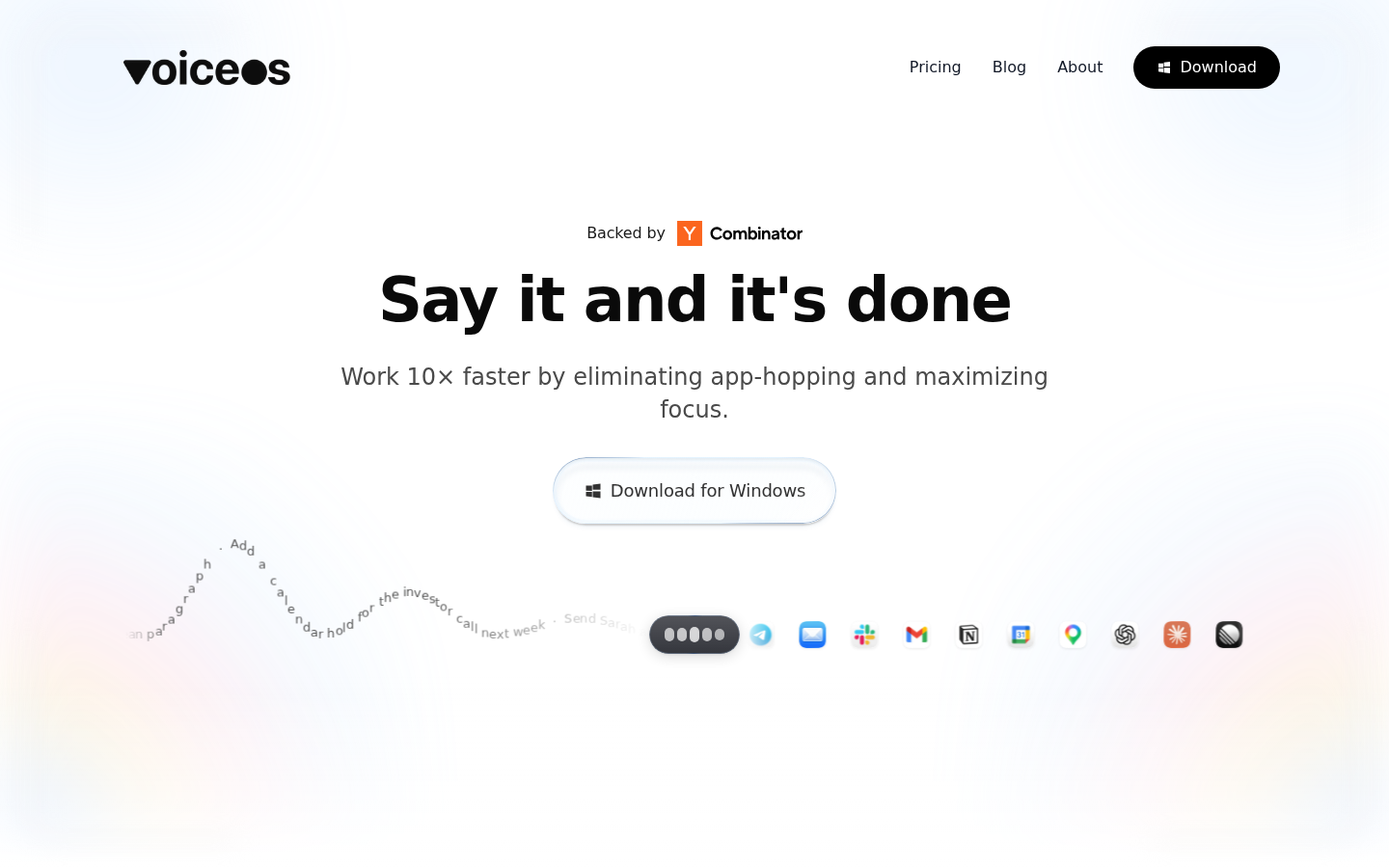
Screenshot archived from the listing page, for preview only.