twinny
Free AI aid for VS CodeCode faster with a private AI helper
Highlights
What you can do with it
- Catch and fix syntax errors while writing JavaScript.
- Keep a consistent code style across a collaborative team project.
- Get optimization suggestions while refactoring to reduce redundant code.
How to use it
- 1 Open the Visual Studio Code Marketplace and search for Twinny.
- 2 Click install to add the extension to Visual Studio Code.
- 3 Open the Extensions view and click the Twinny icon to reach settings.
- 4 Customize the extension to match your preferences.
- 5 Start coding and use its suggestions while you work.
Who it is for
Pros
- Free to use and designed with privacy in mind.
- Brings completion, error checks, and optimization into one extension.
- Git integration and customization fit existing workflows.
Limitations
- As a free project, features and availability can change over time.
- Suggestions depend on the model and may not fit every codebase.
- There is a learning curve to configure it well for your setup.
What twinny is
twinny is a free and private AI extension for Visual Studio Code. It brings AI coding assistance directly into the editor, so you can get help without leaving your workspace. The extension provides intelligent code completion, real-time error detection, optimization suggestions, and integration with version control systems such as Git. It supports multiple programming languages and can be customized to match your habits and needs. The pitch is straightforward: speed up routine coding, catch mistakes as they happen, and keep code quality high in both solo and team projects. Because it runs inside Visual Studio Code, the suggestions appear alongside your code rather than in a separate window. Setup is handled through the Visual Studio Code Marketplace, and once installed, the extension sits in your Extensions view ready to configure. The positioning is personal: it aims to cut down repetitive tasks so you can focus on the parts of development that need more thought.
What you can do with it
- Get code autocompletion suggestions to write faster.
- Detect errors and potential issues in real time and fix them promptly.
- Receive optimization suggestions that improve code quality and performance.
- Work with Git through built-in version control integration for easier collaboration.
Who it is for
- Developers who want AI assistance inside Visual Studio Code.
- Teams that need a more unified code style across a shared project.
- Programmers working across multiple languages who value a private setup.
What to watch out for
As a free project, twinny can change over time, and features or availability may shift with updates, so check the marketplace listing for the latest information. Suggestions come from an AI model, which means they will not always fit your specific codebase, and you should review changes before accepting them. There is also a learning curve: the extension is customizable, but getting the settings right for your workflow takes some trial and error. Treat its output as a helper rather than a final answer, especially on larger or safety-critical code, and keep your own testing and review in place. If you rely on specific language support, confirm the extension still covers the languages you use after each update.
FAQ
Is twinny free?
Yes, it is described as a free and private AI extension for Visual Studio Code.
Which editor does it work with?
It is built for Visual Studio Code and is installed from the VS Code Marketplace.
What does it help with?
It offers autocompletion, real-time error detection, optimization suggestions, and Git integration.
Why it is free
What the official page says: 免费
Free limits, trial length and features are decided by the official site and can change at any time.
Product preview
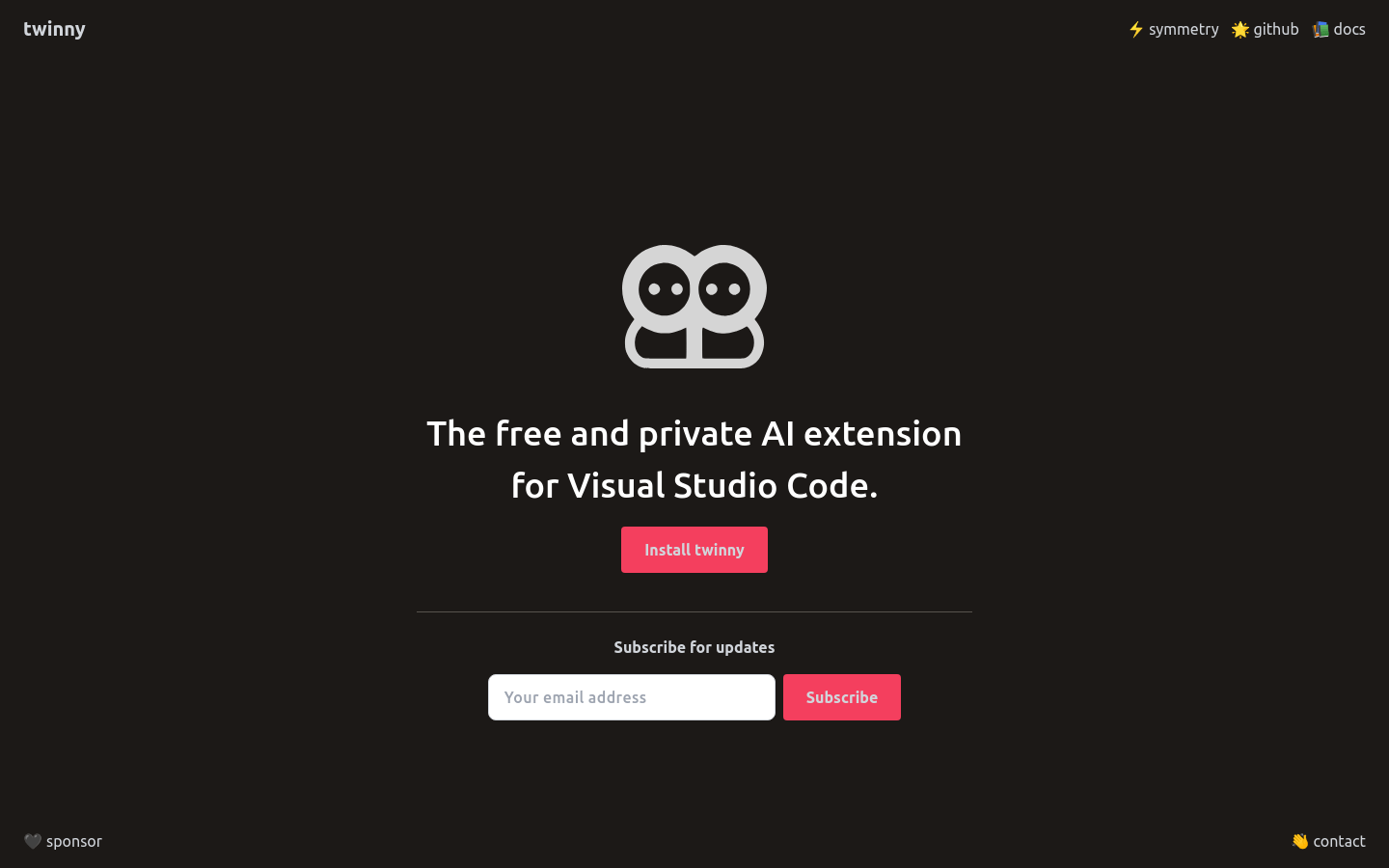
Screenshot archived from the listing page, for preview only.