Speechlab
Desktop voice translationTranslate speech, synthesize voices
Highlights
What you can do with it
- Translate a spoken presentation into another language
- Turn a written script into narration without recording a voice actor
- Localize a video voiceover on a desktop machine
How to use it
- 1 Download and install the Speechlab desktop client
- 2 Choose voice translation or voice synthesis mode
- 3 For translation, supply the spoken input and pick the target language
- 4 For synthesis, paste the text and generate the voice
- 5 Check the official site for current trial limits and subscription pricing
Who it is for
Pros
- Both translation and synthesis live in one desktop client
- Free trial lets you test the voices before paying
- Voice output is described as close to natural human speech
Limitations
- Only two core capabilities are documented, so the wider feature set is unclear
- Free trial limits and subscription pricing are not published on the listing page
- Desktop-only install rules out mobile use, and quality depends on the language pair
What Speechlab is
Speechlab is a desktop client built around two capabilities: voice translation and voice synthesis. On the translation side, it takes speech and renders it in a different language. On the synthesis side, it converts text into a generated voice, and the developer describes the output as close to natural human speech. The stated goal is to break down language barriers so content can reach a wider audience. Access follows a free trial plus paid subscription model, and the specific pricing is published on the official website rather than in this listing. Treat the trial as your chance to judge voice quality for your own language pair before you commit to anything.
What you can do with it
- Translate spoken audio into another language
- Turn written text into a synthetic voice
- Preview voices locally in an installed desktop application
- Use the same client for both directions of the workflow
Who it is for
This fits anyone who needs a local tool for moving speech between languages or generating narration from a script. That includes people localizing a video voiceover, presenters preparing material for an audience that speaks another language, and anyone who would rather install an app than keep a browser tab open. Because the pitch is about accessibility rather than studio production, casual and professional users are both in scope. If your work involves long scripts, the synthesis side saves a recording session; if it involves spoken source material, the translation side is the part you will lean on.
What to watch out for
The public description is thin. Two features are named and nothing else is itemized, so you cannot tell from the listing how many languages are supported, what voice choices exist, or how long files can be. The trial is limited in some way, and the paid tiers are not spelled out here, so check the website before you plan a project around it. It is also a desktop client, which rules out quick jobs on a phone. Voice quality varies by language pair, so test the exact combination you need rather than assuming the demo voice carries over.
FAQ
Is Speechlab free?
No. It runs on a free trial plus a paid subscription. Exact prices are on the official website.
Does it work on mobile?
The listing describes it as a desktop client, so plan on installing it on a computer.
What can it actually do?
Two things: translate speech into another language, and synthesize natural-sounding voices from text.
Do I need to record my own voice?
No. The synthesis side generates a voice from the text you provide.
Why it is free
What the official page says: free trial
Free limits, trial length and features are decided by the official site and can change at any time.
Product preview
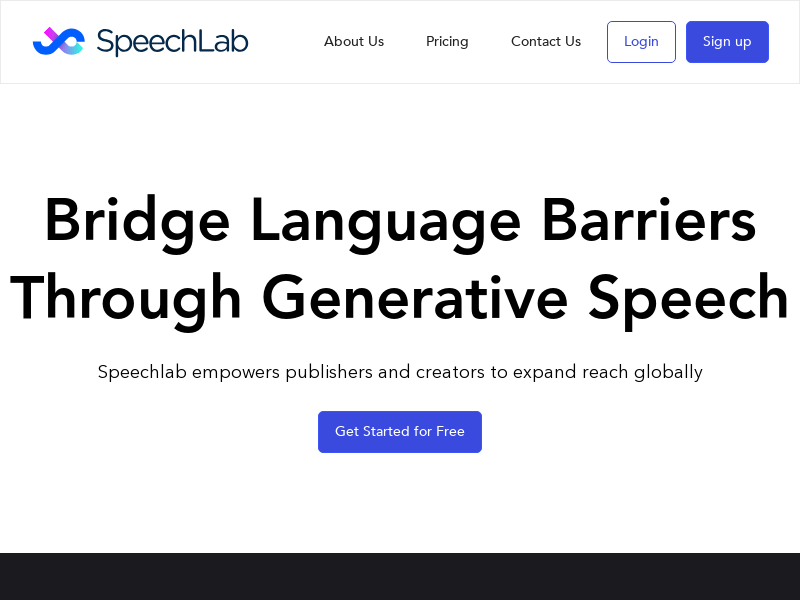
Screenshot archived from the listing page, for preview only.