Polarr Next AI Color Match
AI color style matchingCopy colors from any photo
Highlights
What you can do with it
- A photographer spreads the look of one good frame across a whole set
- A designer pulls a palette from a reference image into a project
- A casual user copies a social media photo style onto their own shots
- An editor saves a matched look as a LUT for reuse
How to use it
- 1 Open the color match website
- 2 Upload your own source image or pick one of the samples
- 3 Upload the target image you want to restyle
- 4 Adjust the strength of the color match
- 5 Preview the result, then download it or save it as a profile or LUT
Who it is for
Pros
- Fast way to move a look between images
- Strength control keeps the effect from going too far
- Output can be saved as a reusable profile or LUT
- Basic use is free in the browser
Limitations
- Advanced features sit behind the paid Polarr Next desktop app
- Results depend on the reference image being a good one
- Extracted styles can clash with skin tones and need manual fixes
- Free access rules can change over time
What Polarr Next AI Color Match is
Polarr Next AI Color Match is a browser tool for copying the color feel of one image onto another. The listing describes it as an AI powered online color matcher: you give it a source photo, it reads the color style out of that photo, and then you apply the extracted look to your own picture. The point is to skip manual curve and hue work, which is slow and hard to repeat. A strength control lets you dial the effect back so the result does not overpower the original frame, and a live preview shows the change as you adjust. When you are happy, you can download a plain image or save the look as a Lightroom profile or LUT so it can be reused later. Basic functions are free to try in the browser, and the page points to the Polarr Next desktop app for more advanced work.
What you can do with it
- Pull the color style out of any reference photo.
- Apply that style to your own image in one click.
- Control how strong the applied look is before you commit.
- Export the result as an image, a Lightroom profile, or a LUT.
Who it is for
- Photographers who want a consistent look across a shoot.
- Designers translating a mood board into actual image edits.
- Social media users recreating a style they saw in a feed.
- Editors who want a reusable LUT instead of repeating steps.
What to watch out for
The free side covers basic matching, and the listing says more advanced features may need a paid unlock through the Polarr Next desktop app. Results are only as good as the reference, so a poorly exposed or heavily filtered source will drag your photo down with it. Applied styles can shift skin tones oddly, which means portraits often need a manual pass afterwards. Very different source and target images, such as a night scene applied to a bright daylight shot, can produce muddy or unnatural color. Because it is an online service, availability and the exact free limits can change, so export anything important promptly.
FAQ
How does the color match work?
You upload a source photo, the AI extracts its color style, and you apply that style to a target photo.
What can I export?
You can download the edited image or save it as a Lightroom profile or a LUT.
Which formats are supported?
The material lists JPEG, PNG, and WebP among the supported image formats.
Is everything free?
Basic functions can be tried for free, while more advanced features may require the paid desktop application.
Why it is free
What the official page says: for free
Free limits, trial length and features are decided by the official site and can change at any time.
Product preview
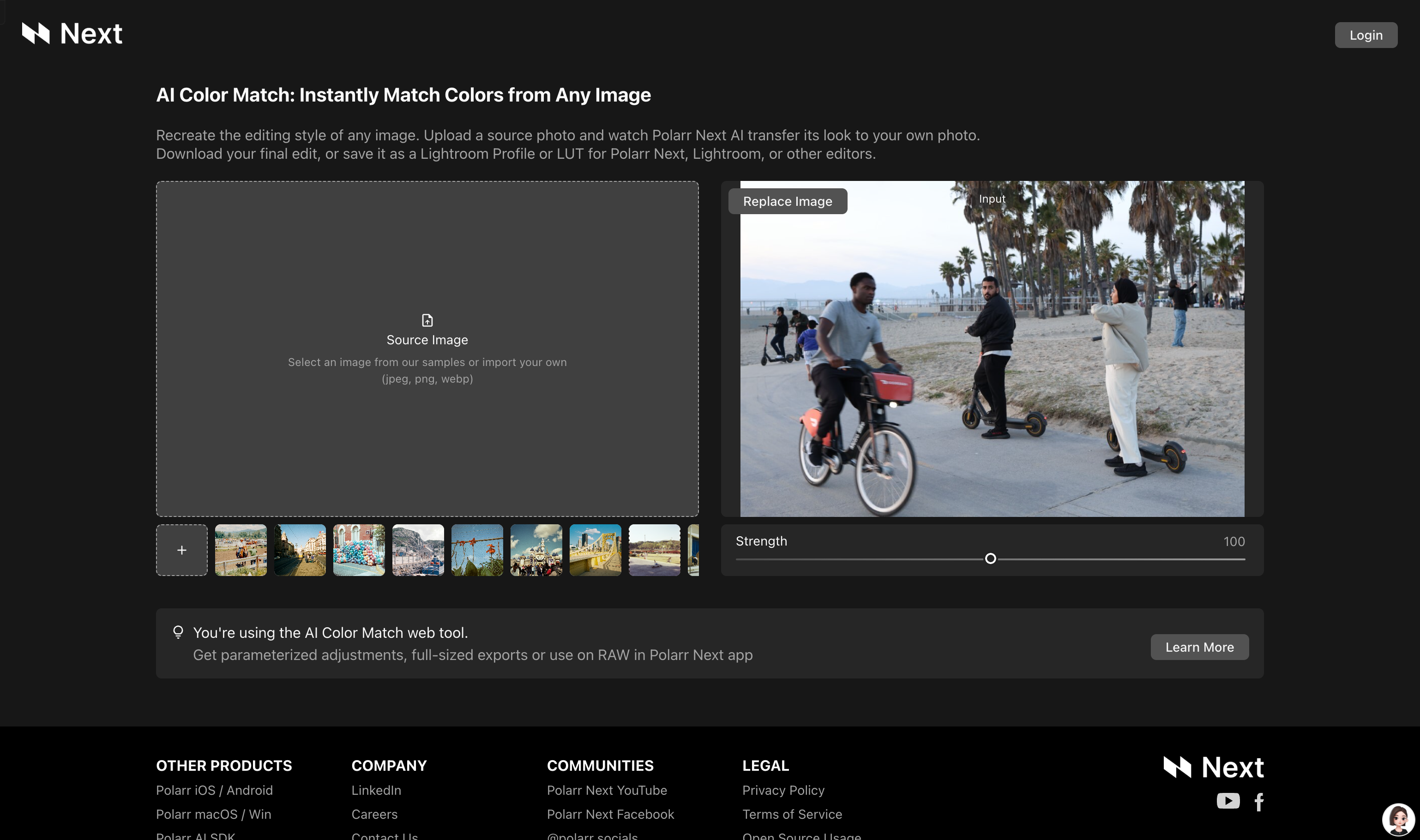
Screenshot archived from the listing page, for preview only.