PixPretty
AI image editing toolRemove backgrounds in batches
Highlights
What you can do with it
- Remove backgrounds from product photos in bulk
- Resize and compress images for eBay, Amazon, or Shopify
- Convert WEBP, JPG, or JFIF files to PNG in batches
How to use it
- 1 Open the PixPretty website.
- 2 Select the function you need, such as background removal.
- 3 Upload the images you want to process.
- 4 Wait for the AI to process and check the results.
- 5 Save the edited images in your chosen format.
Who it is for
Pros
- Free editing tools including background removal
- Batch processing saves time on large sets
- Resize, compress, and convert in one place
Limitations
- Free tool terms may change over time
- Complex edges still need manual touch ups
- Uploaded images are processed on a third party site
What PixPretty is
PixPretty is an online AI image editing tool developed by Tenorshare AI. Its AI is trained on millions of real images, and it is designed to handle complex backgrounds that trip up simpler tools, which is the usual reason people abandon free editors. The feature set covers background removal, batch editing for up to 50 images at once, one click resizing optimized for eBay, Amazon, and Shopify listings, image compression, and format conversion between WEBP, PNG, JPG, and JFIF files. A background color changer and a background eraser complete the free feature set.
What you can do with it
- Remove backgrounds from images, including complex cases
- Batch process up to 50 images with transparent backgrounds
- Resize photos for marketplace listings in one click
- Compress files and convert between common formats
Who it is for
- E-commerce sellers preparing product images for listings
- Social media users creating transparent PNGs and creative visuals
- Individuals editing personal photos, such as ID photos and everyday shots
What to watch out for
The tool is offered for free, but free terms can change, and the page does not describe paid limits, so check current conditions before building a workflow around it. Automatic cutouts struggle with fine edges like hair, glass, and complex shadows, so those images need manual touch ups before they look professional. Processing happens on a third party site, so avoid uploading sensitive images and check the privacy terms first. Batch jobs should be spot checked, since one bad input can quietly spoil a whole set, and compressed files should be reviewed for visible quality loss before they go live on a listing.
FAQ
What is PixPretty?
It is an online AI image editing tool from Tenorshare AI with background removal, batch editing, resizing, compression, and format conversion.
How many images can I batch process?
It can process up to 50 images simultaneously, removing backgrounds and making them transparent.
Is it free?
The tool offers a rich set of image editing functions for free, including background removal and background color changes.
Why it is free
What the official page says: for free
Free limits, trial length and features are decided by the official site and can change at any time.
Product preview
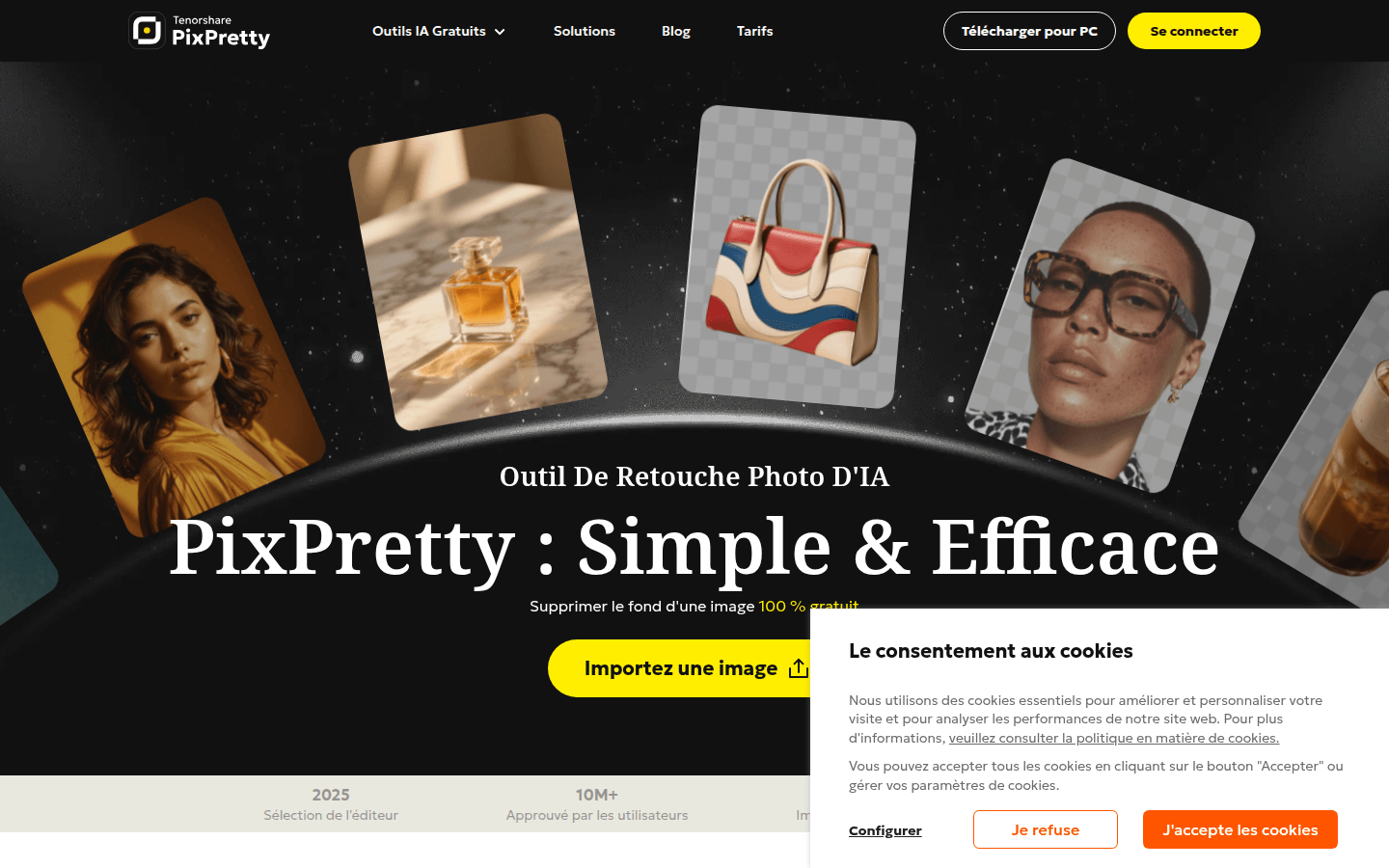
Screenshot archived from the listing page, for preview only.