Heyclicky
Mac AI assistant that guides and actsVoice commands and on-screen help for your Mac
Highlights
What you can do with it
- A music producer gets detailed help with effects settings in FL Studio
- A video editor works through color correction in DaVinci Resolve
- A student has an agent organize and analyze data while using Google Sheets
How to use it
- 1 Check that your Mac runs Sonoma 14.2 or higher
- 2 Download the application from the official Heyclicky website
- 3 Install it, open it, and complete setup including screen access permission
- 4 Press the hotkey to activate Heyclicky when you need help
- 5 Ask by voice or text, or hand it a task to run for you
Who it is for
Pros
- Works on top of existing apps without plugins
- Screen drawing makes instructions easy to follow
- A free plan is available to start
- Can run several tasks at the same time
Limitations
- Mac only, and it needs Sonoma 14.2 or higher
- Screen access permission is required, which some users may not want to grant
- Heavier use needs the Pro or Max plan
- Free plan limits and the first-month discount can change
What Heyclicky is
Heyclicky is an AI assistant made for the Mac. It sits on top of whatever application you are using and does three things: it teaches you how a tool works, it guides you step by step when you get stuck, and it runs agent tasks for you from a voice command. Because it reads your screen, it can point at the exact control you need instead of giving generic advice, and it can draw directly on the screen to mark the direction of an action. It does not need plugins to work with different programs, and it can run more than one task at the same time, so it can tidy up a spreadsheet while you keep working. A free package exists alongside Pro at 20 dollars per month and Max at 100 dollars per month, and it requires macOS Sonoma 14.2 or higher.
What you can do with it
- Learn unfamiliar software such as FL Studio or DaVinci Resolve with on-screen explanations
- Get step-by-step guidance based on what is currently visible on your display
- Start tasks by voice instead of typing commands in a terminal
- Let it run background jobs while you continue with your own work
Who it is for
- Professionals including music producers, video editors, and programmers
- Students who keep meeting new tools and need a patient guide
- Everyday Mac users who want their computer to be easier to drive
- Anyone who prefers speaking a command over typing one
What to watch out for
It only runs on a Mac, and the system has to be Sonoma 14.2 or higher, so older machines are out of luck. The screen-reading and drawing features need screen access permission, which means the app can see what is on your display, so grant it only if you are comfortable with that. Free use is limited, and the Pro or Max plans are needed for heavier work, with prices and the first-month discount subject to change. Guidance quality also depends on how clearly you describe the problem, since the assistant works from what it can see and hear.
FAQ
Which Mac versions are supported?
The site states that your Mac system version needs to be Sonoma 14.2 or higher.
Does it need plugins to work with my apps?
No. It adapts to various applications without plugins, reading what is on your screen and guiding you from there.
How much does it cost?
Three packages are listed: free, 20 dollars per month for Pro, and 100 dollars per month for Max. New and existing users creating projects can get 50 percent off the first month of Pro.
Can it run tasks for me?
Yes. With a voice command it can run AI agents to perform tasks, and it can handle several jobs in parallel while you continue working.
Why it is free
What the official page says: 免费
Free limits, trial length and features are decided by the official site and can change at any time.
Product preview
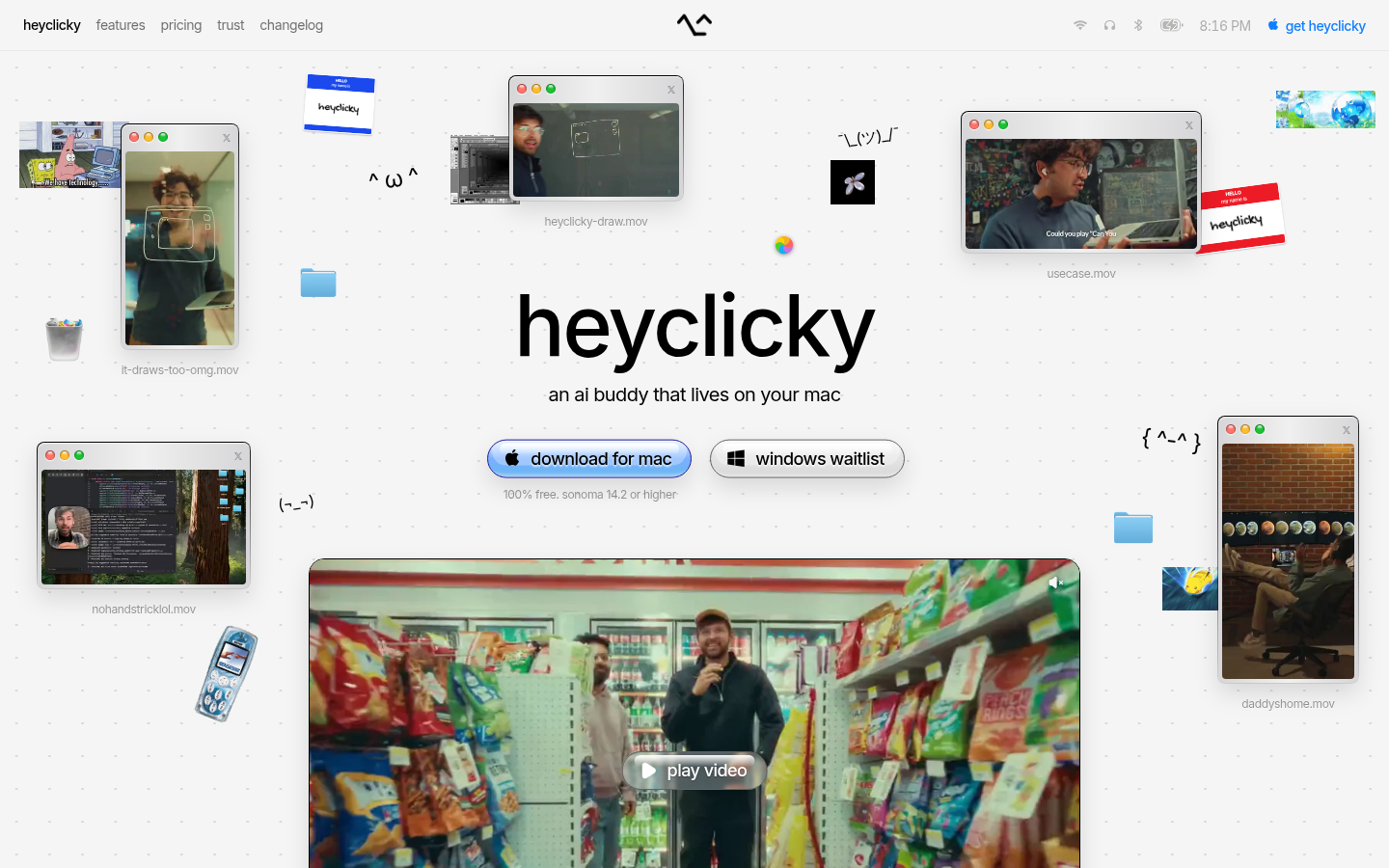
Screenshot archived from the listing page, for preview only.