Boom video
Presentation video app for MacProfessional live streams and recordings, no editing
Highlights
What you can do with it
- A founder presenting to clients over video calls
- A host running a webinar with camera and slides
- A researcher recording a lecture and switching screens
How to use it
- 1 Download and install Boom for Mac
- 2 Choose your camera, whether the MacBook camera, a webcam or an iPhone
- 3 Connect to Zoom, Meet or Teams and select Boom as the camera
- 4 Set the layout and add branded elements before going live
- 5 Switch layouts and zoom during the session, then export without editing
Who it is for
Pros
- Produced look without an editing step afterwards
- Layout changes happen live rather than in post
- AI enhancement improves an ordinary webcam feed
- Works with the conferencing tools people already use
Limitations
- It is a Mac application, so Windows users are not covered
- The free trial is limited and paid use follows
- AI camera enhancement depends on lighting and webcam quality
- Live layout switching needs practice to do smoothly
What Boom video is
Boom for Mac is a video application made for people who present for a living. The pitch is that a live stream or recording should look produced without an editing pass afterwards and without buying extra hardware. During a session you can switch between camera-only, side-by-side and screen layouts in real time, and zoom into any part of the screen to pull attention to a specific detail. Branded overlays such as logos, lower-third subtitles and backgrounds give every presentation a consistent look. Screen recording captures screen and camera together in dynamic layouts, including picture-in-picture and full screen. AI camera enhancement works with an ordinary webcam, adjusting lighting, smoothing skin and cleaning the background, and virtual backgrounds support blur, replacement and green screen. A floating remote control keeps layout, zoom and source selection within reach, and the app works with Zoom, Meet and Teams. A free trial is offered.
What you can do with it
- Switch layouts live between camera, side-by-side and screen
- Zoom into any part of the screen to guide attention
- Add logos, lower thirds and branded backgrounds
- Record screen and camera together in one pass
- Enhance an existing webcam feed with AI lighting and background tools
Who it is for
- Coaches and course creators teaching on camera
- Consultants and founders presenting to clients
- Researchers and professionals delivering recorded lectures
What to watch out for
It is a Mac-only application, so Windows users need a different tool. The free trial is limited and paid use follows, so check the current price before building a workflow around it. AI camera enhancement is limited by your lighting and webcam: a dark room and a cheap sensor still produce a weak image. Switching layouts live is a skill, so rehearse before a high-stakes presentation rather than learning the hotkeys in front of a client.
FAQ
Is Boom free?
A free trial is offered. The vendor does not itemise pricing in the source material, so check the current plans.
Which systems does it run on?
Boom for Mac. You can use the MacBook camera, an external webcam or an iPhone as the camera source.
Do I need to edit afterwards?
No. The app is designed so layouts, zoom and overlays are handled live, and recordings can be exported without additional editing.
Why it is free
What the official page says: free trial
Free limits, trial length and features are decided by the official site and can change at any time.
Product preview
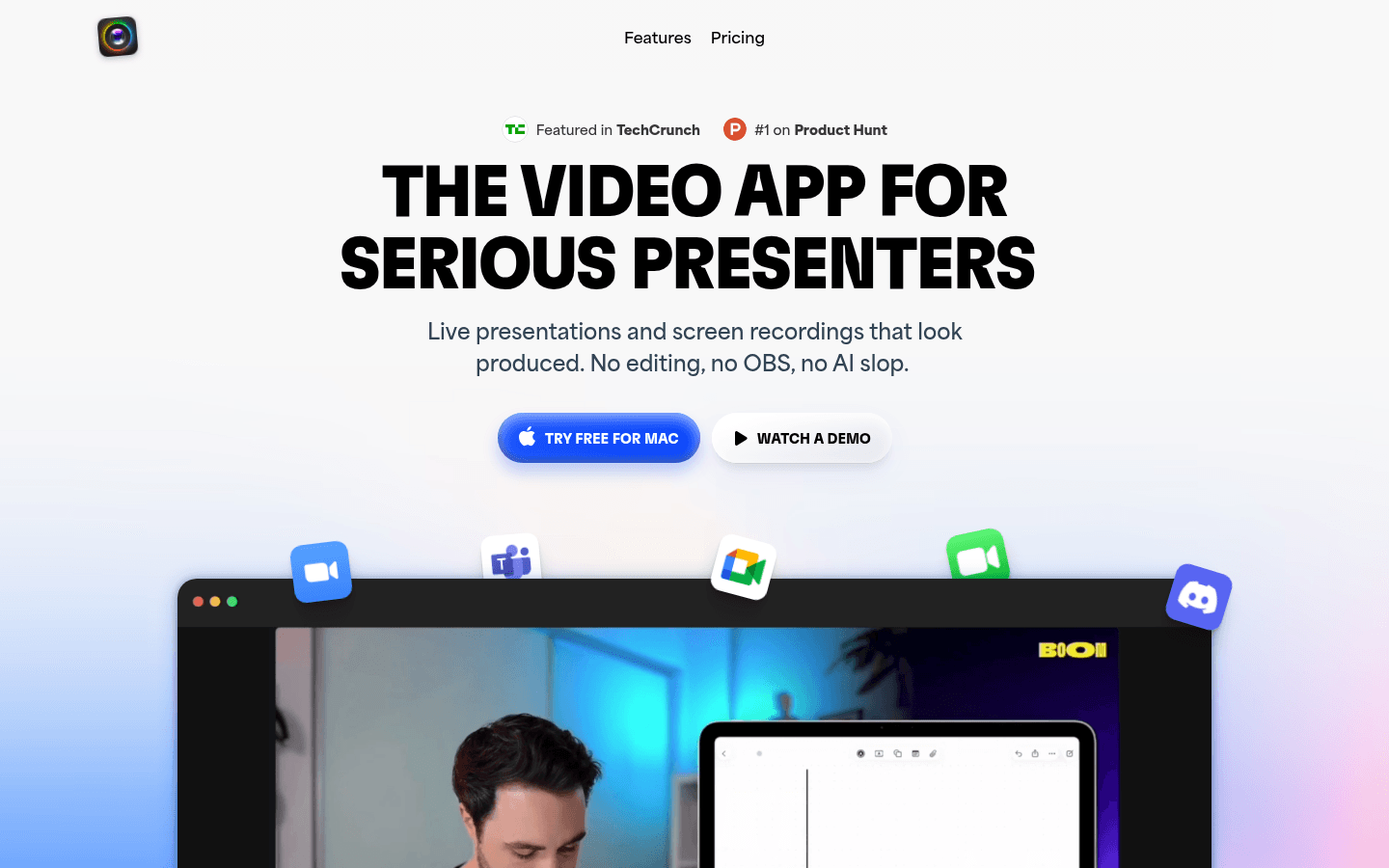
Screenshot archived from the listing page, for preview only.