AI Context Bridge
Browser extension for AI chat contextType @ to pull a tab into your prompt
Highlights
What you can do with it
- A developer compared a pull request, API docs, and an error log inside Claude
- A marketer pulled three competitor pricing pages into one ChatGPT prompt
- An analyst summarized an internal dashboard and task board in DeepSeek
How to use it
- 1 Install the extension from the Chrome Web Store or load the ZIP file.
- 2 Open a supported AI chat platform and start a conversation.
- 3 Type @ in the prompt box to bring up your open tabs.
- 4 Check one or more tabs to attach them as chips.
- 5 Write your instruction and send; the cleaned context goes with the question.
Who it is for
Pros
- Removes the copy, paste, and format loop
- Parsing happens locally, which helps privacy
- Works on private pages you are already logged in to
Limitations
- Core features are free but Pro compression costs a one-time $10 and pricing can change
- Extraction quality varies with page design
- It handles web pages, not local files
What AI Context Bridge is
AI Context Bridge is a browser extension that connects web pages to AI chat windows. In a supported chat box on ChatGPT, Claude, Gemini, DeepSeek, or one of the other listed platforms, you type @ and a list of your currently open tabs appears. You check the ones you want, and their main text is attached to your prompt as chips, so you stop switching windows, copying, and reformatting. The extension cleans the page first, filtering banners, cookie pop-ups, sidebars, and footnotes to keep the valuable body text and tables. It can also read pages you are logged in to, such as internal dashboards and private documents, which a plain URL cannot reach. All parsing happens locally, with no cloud storage or proxy.
What you can do with it
- Attach one or several open tabs to a prompt with @
- Pull main text and tables while dropping page noise
- Reference logged-in private pages inside an AI chat
- Compare documents, pricing pages, and logs in one request
- Compress long documents with the Pro feature
Who it is for
- Researchers and analysts working across many tabs
- Developers comparing documentation, code, and error logs
- Staff who need internal pages summarized in an AI chat
- Anyone tired of the copy and paste loop
What to watch out for
Core functions are free, but the compression feature sits behind a one-time $10 Pro purchase, and pricing can change. Extraction quality depends on page structure, and unusual layouts may return partial text. The extension handles browser pages, not local files, so documents still need another route. Because you are sending page content to an AI provider, check your organization's rules before pasting internal or confidential material into an external chat.
FAQ
How do I use it?
Type @ in the prompt box of a supported AI chat site and select the tabs you want to reference.
Is it free?
Core functions are free; the Smart Context Pro upgrade is a one-time $10 purchase.
Which AI sites are supported?
Nine are listed, including ChatGPT, Claude, Gemini, DeepSeek, Kimi, Grok, and others.
Why it is free
What the official page says: 免费
Free limits, trial length and features are decided by the official site and can change at any time.
Product preview
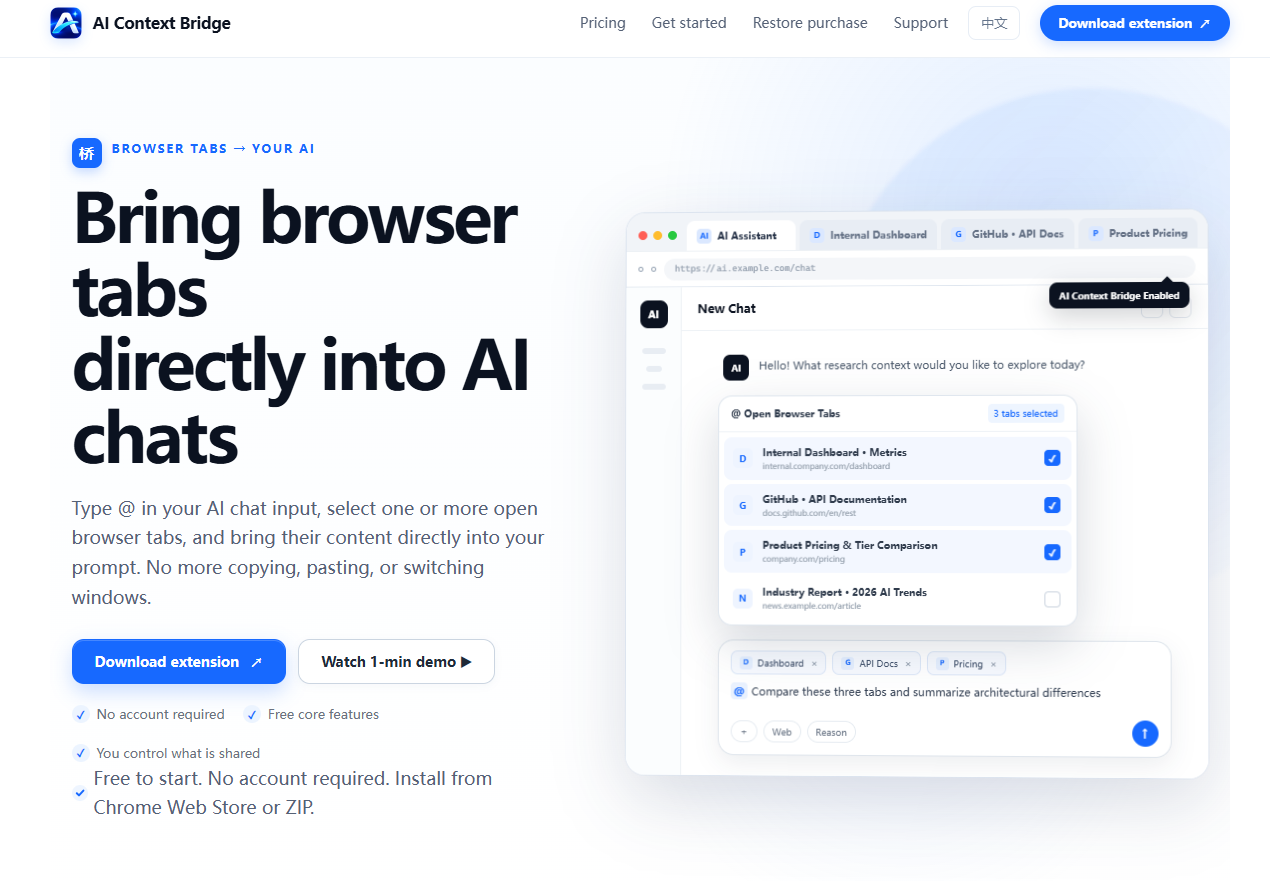
Screenshot archived from the listing page, for preview only.